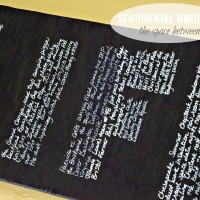
Ok, so it would be an understatement to say that I’m not totally thrilled that there isn’t just some bright, big, right-in-my face ‘reverse text’ tab on the home screen in Word. Phew! I would have felt like a total loser. But, lucky for me, I only feel like kind of loser. Truth be told, there is a pretty simple, however not 100% intuitive (at least that’s what I’m choosing to tell myself) option that my blog buddy Linda pointed out to me. And she just so happened to have posted a great tutorial for the version of Word she was using. And, since I had to figure out a couple of the steps in our Microsoft Word 2007 ’cause we’ve totally got the latest and greatest technology, here is the step-by-step tutorial to make a reverse image for my your future reference. ;) And, yes, I totally did type ‘horixontal’ in that step description. And, a little insider secret, if you hover over the picture for step 4 … I saved it on my computer as ‘right your text’ instead of ‘write your text’. Awesome, I am. Sigh. Now, print and then just follow the steps for the image transfer using your newly mirrored image here. And, an awesome reader of this here blog, Patty, gave another great set of instructions using the text box option in Word. I have to admit, I got hung up on the ‘paste as a picture’ step. I’m used to a ‘paste special’ option and it just wasn’t working that way for me. But, it might just be because I am kind of a loser am not that bright have the attention span of a wasp didn’t take the time to make it work. I’m sharing it here fully expecting that many of you … continue reading →